How do I keep before, during and after photos on a job?
Open the job and click Photos, then Add photos. From a phone it opens the camera. Photos are shrunk in the browser before upload, so a bay with one bar of signal still works, and the customer's record shows them too.
1 minute read · Updated October 2026
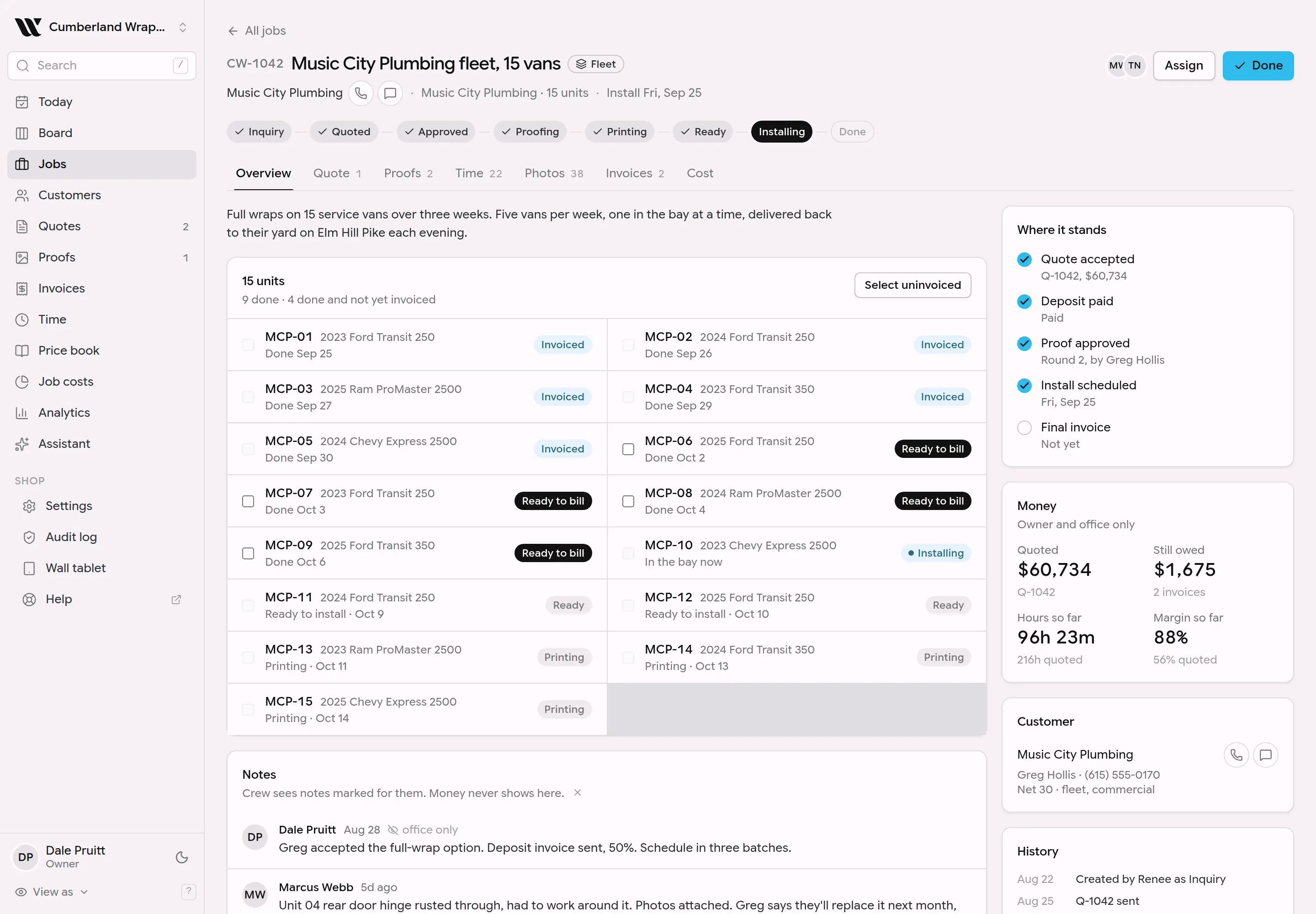
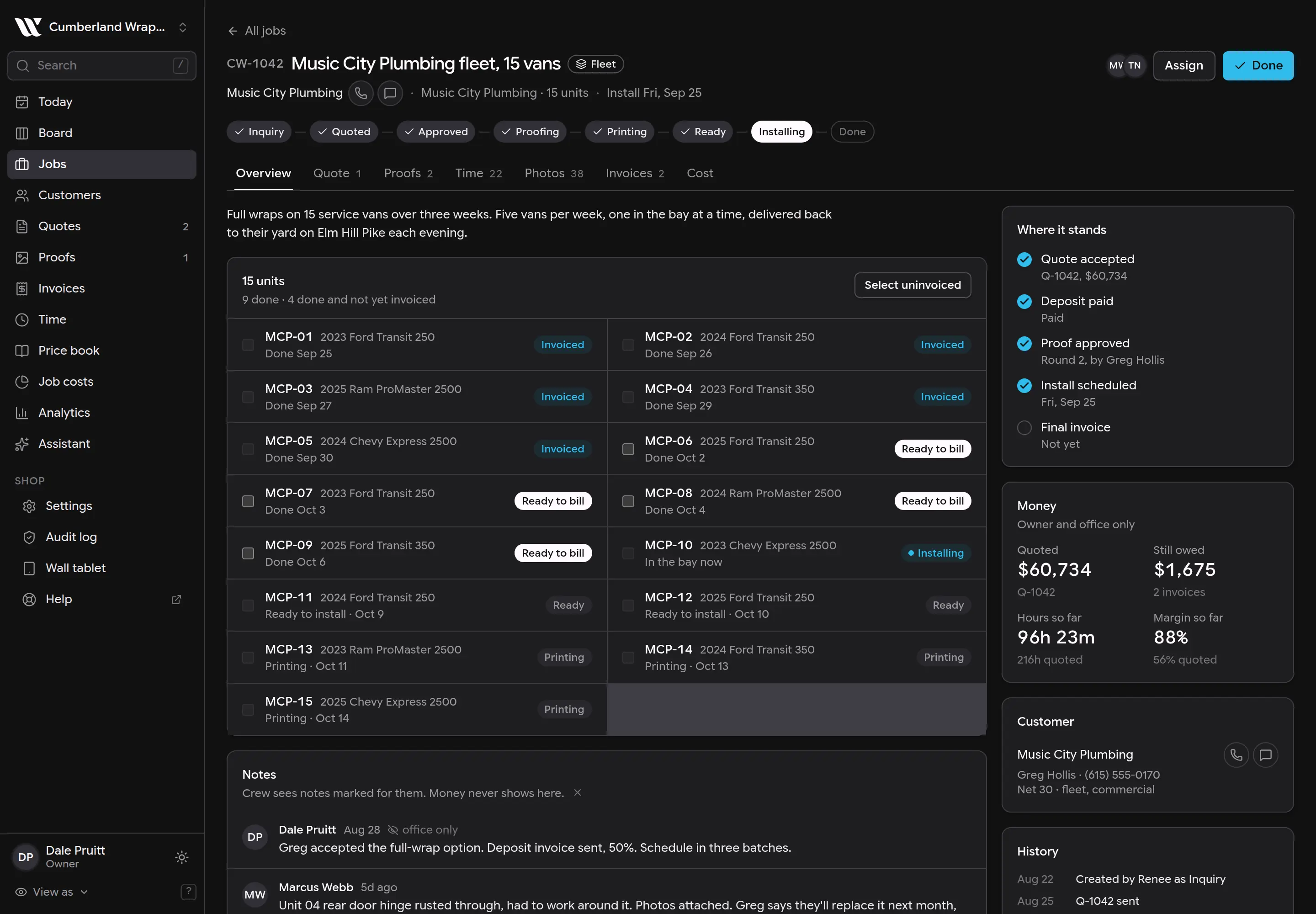
This screenshot is generated from the live interface and updates whenever the screen changes. Links in this article open the product in a new tab.
Step by step
- 1Open the job, click Photos, then Add photos.
- 2Take the picture or pick files; several at once is fine.
- 3Add a caption if it helps. The latest six show on the job page; the customer's record shows every photo from their jobs.
Good to know
- Installers never see prices, costs or invoices, whatever screen they are on.
- Nothing in WrapFlow is permanently deleted on the first click. Deleted things are hidden and can be brought back for 30 days.
- If something here does not match what you see, the screenshot above is from the current version; tell us and we will fix the words.
Also in Jobs & the board
Not using WrapFlow yet?
30 days free, no card. Setup takes four minutes.