How do I move a job to the next stage?
Drag the card to the next column, or open the job and click the next stage at the top. Printing, Ready and Installing need an approved proof; WrapFlow will tell you if one is missing.
1 minute read · Updated October 2026
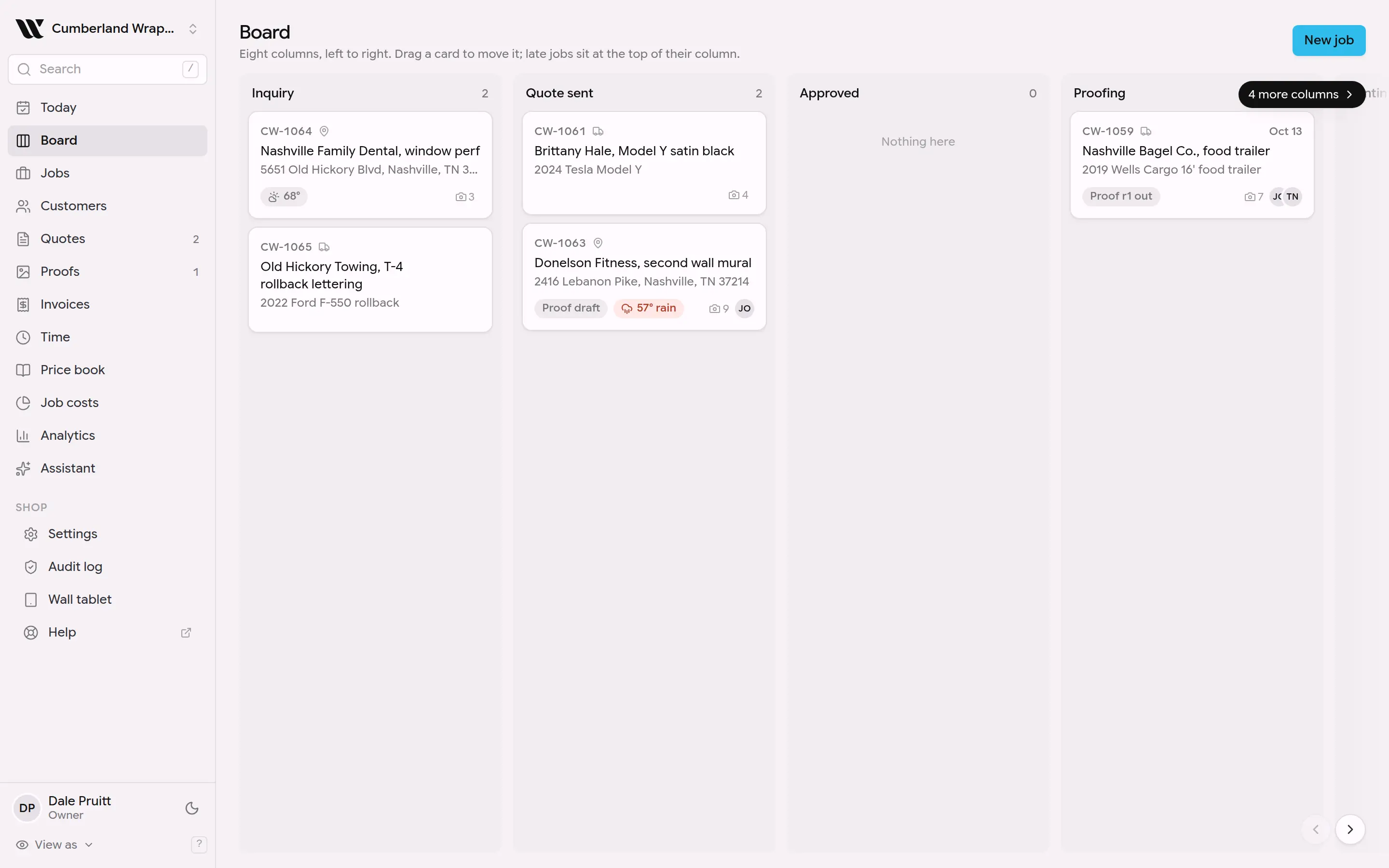
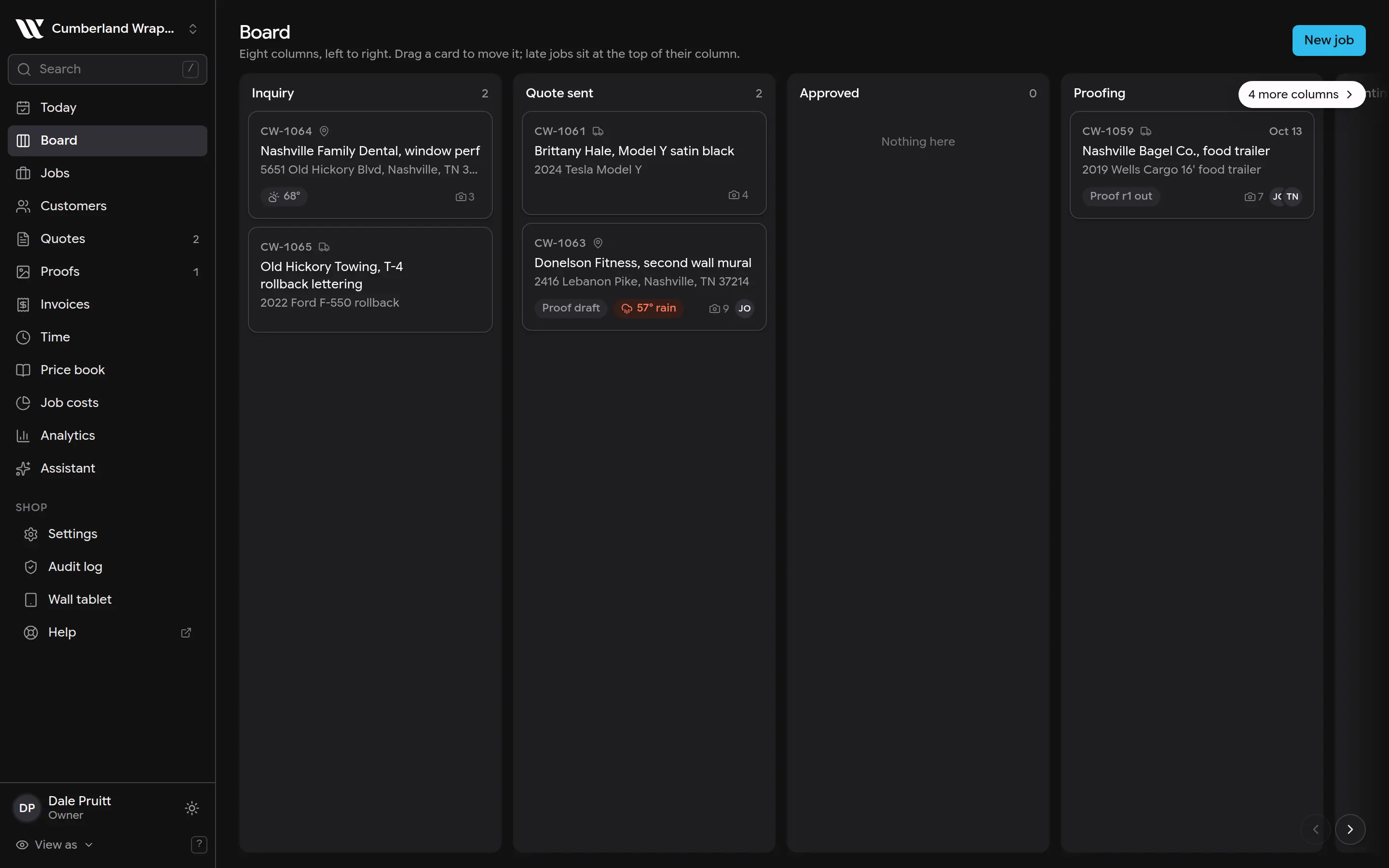
This screenshot is generated from the live interface and updates whenever the screen changes. Links in this article open the product in a new tab.
Step by step
- 1Open the screen named in the answer above from the left-hand menu.
- 2Find the item you want to change and click it.
- 3Make the change. It saves as you go; there is no Save button to miss.
Good to know
- Installers never see prices, costs or invoices, whatever screen they are on.
- Nothing in WrapFlow is permanently deleted on the first click. Deleted things are hidden and can be brought back for 30 days.
- If something here does not match what you see, the screenshot above is from the current version; tell us and we will fix the words.
Also in Jobs & the board
Not using WrapFlow yet?
30 days free, no card. Setup takes four minutes.